Pinecone Assistant: n8n quickstart
Build an n8n workflow with Pinecone Assistant and OpenAI to download files via HTTP, upload documents, and chat with them from an automation.
Create an n8n workflow that that downloads files via HTTP, uploads them to Pinecone Assistant, and enables you to chat with documents using OpenAI.
1. Create an assistant
Section titled “1. Create an assistant”Create an assistant in the Pinecone console:
- Name your assistant
n8n-assistant.
2. Install the Pinecone Assistant node
Section titled “2. Install the Pinecone Assistant node”In your n8n account, install the Pinecone Assistant node using the nodes panel:
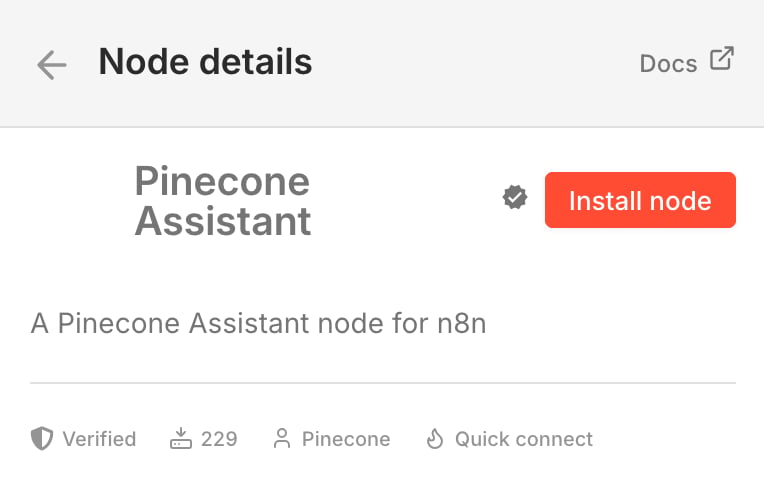
3. Create a new workflow
Section titled “3. Create a new workflow”Copy this workflow template URL:
https://raw.githubusercontent.com/pinecone-io/n8n-templates/refs/heads/main/assistant-quickstart/assistant-quickstart.jsonIn your n8n account, create a new workflow and paste the URL anywhere in the workflow editor. Click Import to add the workflow.
4. Add credentials
Section titled “4. Add credentials”Authenticate with Pinecone
- Use the Connect to Pinecone button in the node to connect to a new or existing Pinecone account:


- If you self-host n8n, add your Pinecone API key directly.
Add your OpenAI credentials
- In the OpenAI Chat Model node, select Credential to connect with > Create new credential and paste in your OpenAI API key.
5. Execute the workflow
Section titled “5. Execute the workflow”By default, the workflow downloads recent Pinecone release notes and uploads them to your assistant. Click Execute workflow to start uploading documents.
4. Chat with your docs
Section titled “4. Chat with your docs”Once the documents are uploaded, you can chat with your assistant. In the n8n workflow, use the Chat input node to ask questions like:
What support does Pinecone have for MCP?Next steps
Section titled “Next steps”- Customize the workflow for your own use case:
- Change the urls in the Set file urls node to use your own files.
- Customize the system message on the AI Agent node to indicate what kind of knowledge is stored in Pinecone Assistant.
- To help manage token consumption, add the Top K and/or Snippet Size parameters to the Get context from Assistant node.
- Filter the context snippets even further by adding metadata filters to the Get context from Assistant node.
- Use n8n, Pinecone Assistant, and OpenAI to chat with your Google Drive documents.
- Learn more about Pinecone Assistant.
- Get help in the Pinecone Discord community.